
When Tall Bob submits a Sender ID application on your behalf, your Authorised Representative will receive an email from ACMA with a secure link to review and confirm the registration. If this is the first time accessing ACMA Assist, you will be guided through a one-time account setup before proceeding.
Before you begin: Make sure your ACMA Assist login is set up with your myID. If you don’t yet have myID set up, follow the instructions here:
https://www.myid.gov.au/how-to-set-up-myid
Step 1: Log in to ACMA Assist
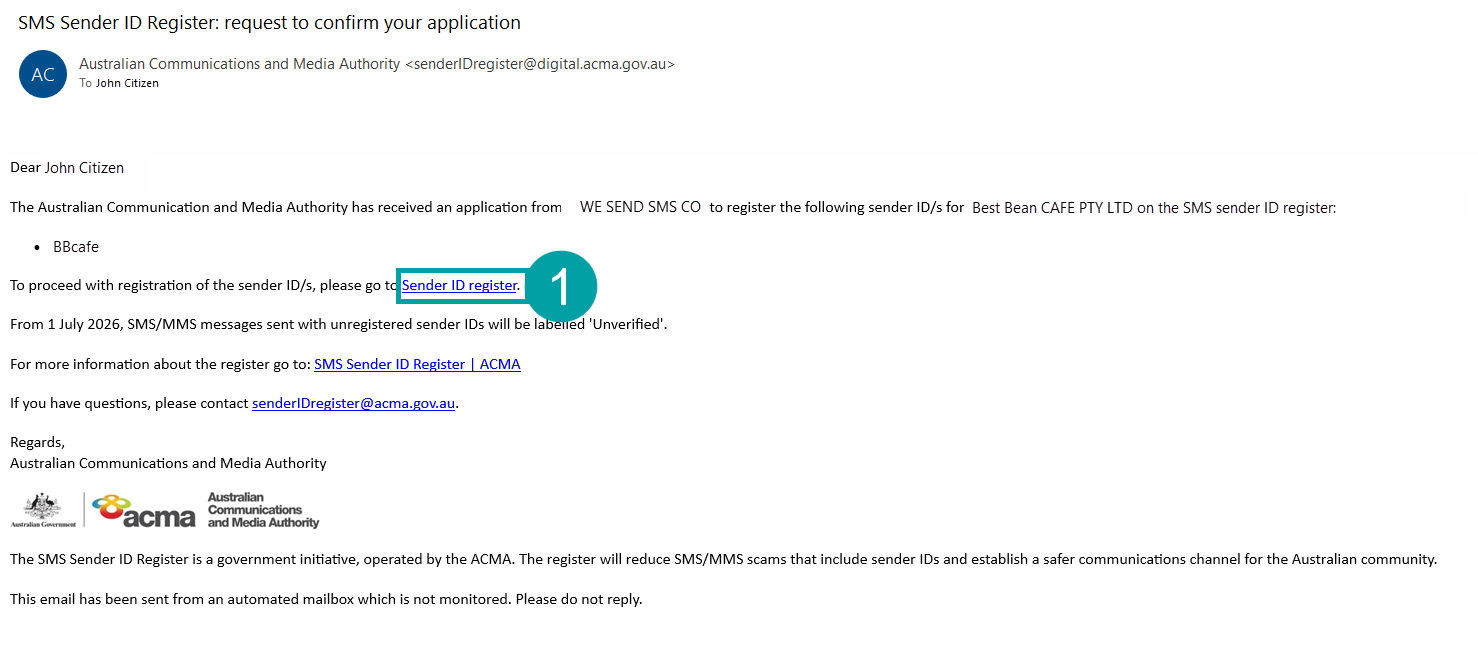
Open the email received from ACMA and click on the Sender ID Register link. You will be redirected to the ACMA Assist login page
Click “Sign up or log in”
Select “Continue with Digital ID (myID)”. Log in using your Australian Government myID
If you don’t yet have a myID set up, follow the instructions here:
https://www.myid.gov.au/how-to-set-up-myid
Sample ACMA Email
Step 2: Verify Your Business Details (First-Time Access Only)
If this is your first time logging into ACMA Assist, you will be required to verify your business details.
Verify your ABN
Review the pre-filled ABN and Business Name
If the details are correct, select “Yes” and click Next
Verify your Email Address
You will be prompted to verify your email address
The steps may vary depending on your use case. For detailed guidance, refer to ACMA’s documentation: https://www.acma.gov.au/41-accessing-register-first-time#:~:text=Next%C2%A0button.-,4.1.2%20Verify%20your%20email,-Next%20you%20need
Step 3: Confirm Your Sender ID
Once logged in:
Navigate to the Sender ID Register from the ACMA Assist homepage
Or go directly to: https://www.acma.gov.au/acma-assist#/senderid/my
Locate the Sender ID(s) with a pending status
Select the Sender ID you wish to approve
Click “Confirm registration of Sender ID application”
Once confirmed, your Sender ID will move towards approval and activation.
Additional Information
Only an Authorised Representative can approve the Sender ID
Sender IDs will remain pending until they are confirmed
For more detailed information, please refer to the ACMA guide:
https://www.acma.gov.au/41-accessing-register-first-time